React useState Hook Tutorial: Complete Guide to Component State Management

Introduction
Modern web applications are highly interactive; users can click on buttons, fill out forms, toggle navbars, play a video, and so on.
Interactivity makes the UI, therefore the React components change as the time wheel rolls by.
When you type on an input field, the wrapper component should keep track of the last typed value.
If you toggle a navbar, it should always stay toggled and never get reset back to its previous state as long as we’ve never clicked on the toggle button again.
In other words, sometimes a React component needs some kind of local and personal memory to remember what’s needed to accomplish its mission.
Understanding Component State
This specific type of memory is called a component’s local state, and it’s today’s article topic.
Building a Counter Component
Let’s say that we want to create a basic Counter component that supports incrementation, decrementation, and reset operations.
Or in other words, a React component that renders a count variable while providing buttons for incrementing, decrementing, and resetting that counter.
The count variable is declared locally using the let keyword and then rendered in the JSX via the curly brackets syntax.
function App(){
  let count;

  console.count("UI: Updated");

  return (
    <div>
    <div>Count is {count}</div>
    <div>
      <button onClick={(e)=>{
        count += 1;
        console.log(count)
      }}>Increment</button>

      <button onClick={(e)=>{
        count -= 1;
        console.log(count)
      }}>Decrement</button>

      <button onClick={(e)=>{
        count = 0;
        console.log(count)
      }}>Reset</button>
    </div>
    </div>
  )
}
Each button is attached to an event handler that changes the “count” variable depending on the operation.
Adding one on incrementing, subtracting one on the decrementation, and resetting the variable to zero when the reset button gets clicked.
Now, let’s try to increment the “count” while checking the console logs in the inspect window in parallel.
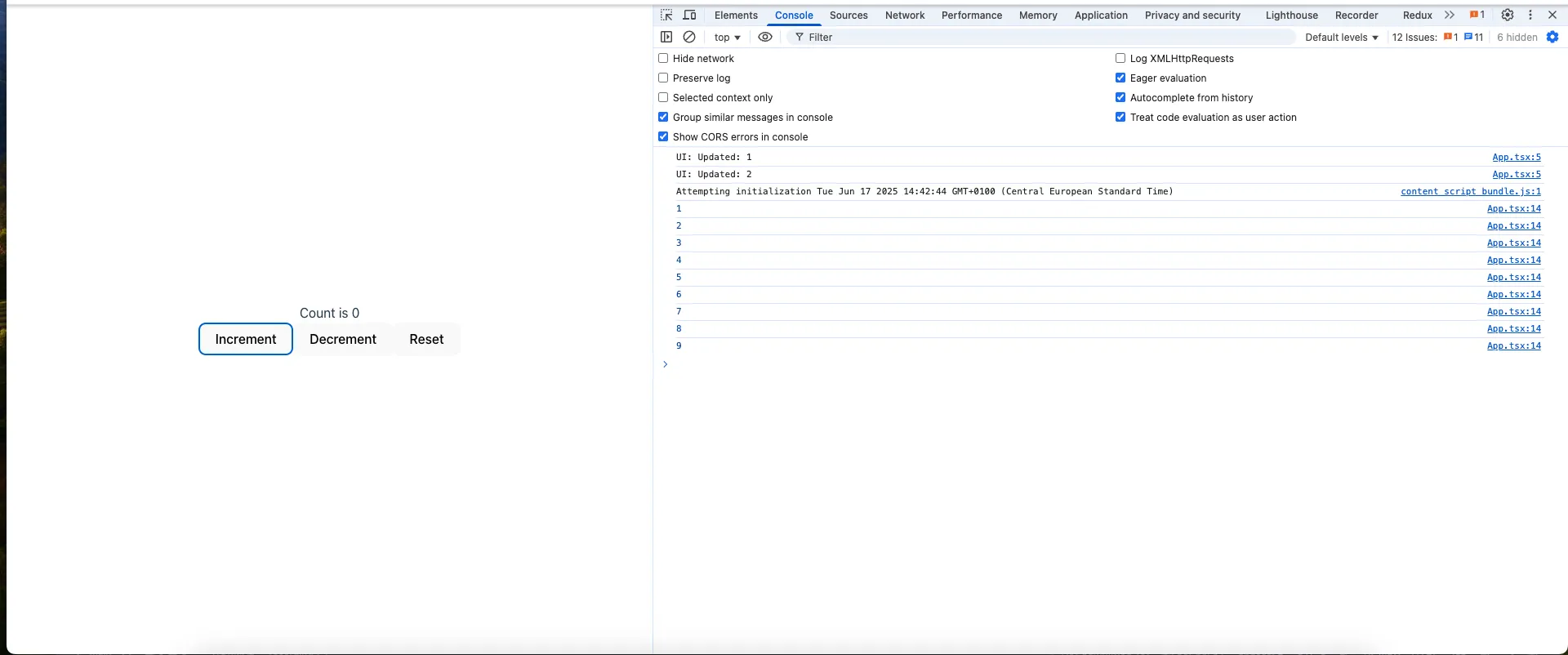
The “count” variable is indeed getting incremented with every click, but the displayed “count” value in the UI is stuck at 0.
In other words, the component is not re-rendering the JSX when we increment the variable.
Notice also that the UI: Updated message got printed two times meaning that the component have only rendered one time. By default React uses Strict mode in development environment for debugging reasons, that’s why the message got printed twice. In production environment, Strict mode gets disabled, thus only 1 render will occur.
Come on, how is it even possible to call this framework React if it’s not reacting to the “count” variable changes by re-rendering the component and updating the UI?
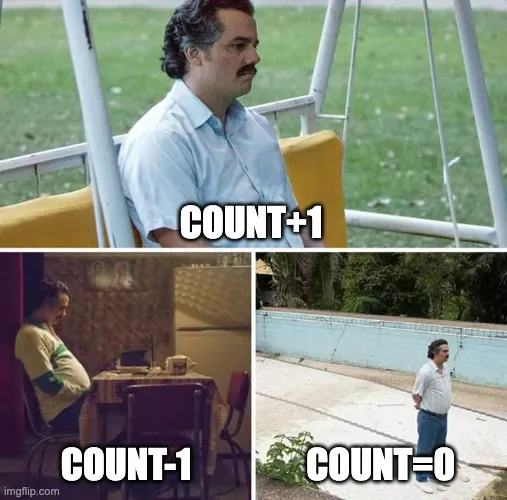
Well, the reason behind that is that changes to the locally declared “count” variable can’t trigger a re-render. Or in other terms, no one is telling React that the “count” variable has changed.
Even if we suppose that changing the “count” variable directly will trigger a component’s re-render.
The “count” variable will be stuck at zero.
The reason is when the component’s code runs, the “count” variable will be re-declared again and, therefore, re-initialized to zero.
So to summarize all that has been said, we need two built-in mechanisms to make the counter-example work:
-
Something that tells React that a given state variable has changed, therefore triggering a component’s re-render and then updating the UI.
-
And a way to persist data or state between the component’s re-renders so that our “count” variable value will never get reset or lost between re-renders again.
Fortunately React has to react to this and provide a utility function named useState.

Using useState
import {useState} from "react"
function App(){
  const stateTuple = useState()
  const [state, setState] = stateTuple

}
useState can be imported from “react” and used inside any component to declare a local state.
useState returns what is known as a tuple, or in other words, an array of two items, the first being the state variable that persists between re-renders, and the second one being a setter function, “setState,” that updates the state while triggering a re-render.
To make this more convenient, we usually use the array destructuring syntax to store the two returned array items in two different variables without a lot of boilerplate code.
import {useState} from "react"
function App(){
  const [state, setState] = useState()
}
The items are usually named variableName followed by setVariableName, but you’re free to name them as you prefer.
It’s also worth mentioning that useState accepts an argument that consists of the initial value of the state; for example, in our case, we want to declare a state variable named “count” and a corresponding setter function named “setState” while ensuring that the “count” variable defaults to zero.
const [count, setCount] = useState(0)Let’s refactor the event handlers to set the “count” using the “setCount” setter function instead of mutating the variable directly.
function App(){
  import {useState} from 'react';
  const [count, setCount] = useState(0)
  console.count("UI: Updated")

  return (
    <div>
    <div>Count is {count}</div>
    <div>
      <button onClick={()=>{
        setCount(count+1)
      }}>Increment</button>

      <button onClick={()=>{
        setCount(count-1)
      }}>Decrement</button>

      <button onClick={()=>{
        setCount(0)
      }}>Reset</button>
    </div>
    </div>
  )

}
Now, let’s try to increment, decrement, and reset the “count.”
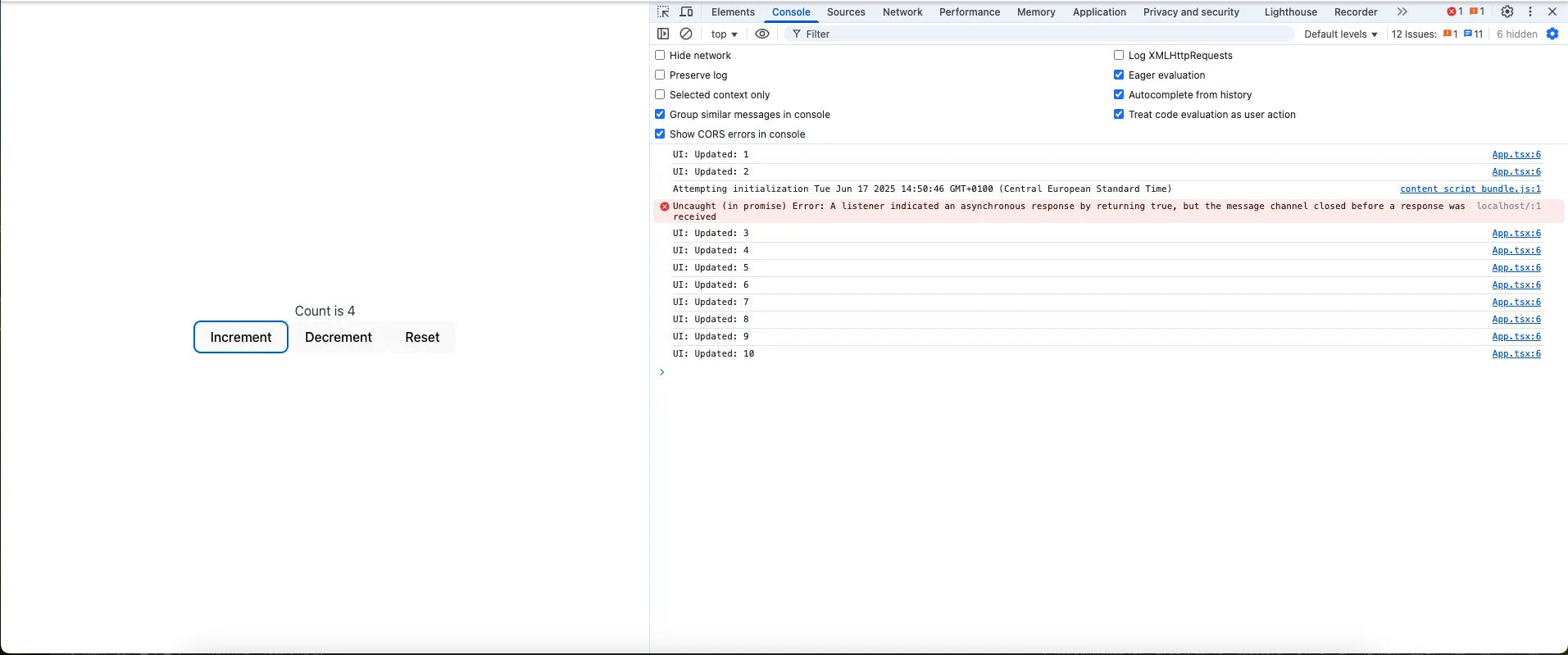
Unlike the previous example, now the UI is reacting to the count variable updates and changing whenever the count variable gets modified.
Or in other terms, the component re-renders when the “count” variable gets modified with the setter function.
Even though the code inside the component re-runs entirely when re-rendering, the state still gets persisted between all the re-renders.
Hooks Rules
In React, any function starting with “use” is called a hook.
Therefore, useState is one of React’s built-in hooks.
In addition to the default hooks that get shipped with react you’re free to create your own but that’s another topic for another article.
It’s true that hooks are ordinary JavaScript functions, but you can’t use them everywhere in your JavaScript application.
Any happy marriage implies adhering to a bunch of predefined constraints, and so too does your relationship with React hooks.
The first rule is to always call your React hooks at the top level of your component.
In other words, just after the opening curly braces ”{}” of the component’s function declaration.
First Rule
Don’t even think about using hooks inside loops, conditions, nested functions, try/catch/finally blocks, or JSX markup.
import { useState } from "react"
function App(){
  // Loops ❌

  while(true){ // ❌
    const [counter,setCounter] = useState(0)
  }

  for(let i=0;i<5;i++){  // ❌

    const [counter,setCounter] = useState(0)
  }
  do{ // ❌

    const [counter,setCounter] = useState(0)
  }while(true)

}
import { useState } from "react"
function App(){
if(true){ // Conditions ❌
const [counter,setCounter] = useState(0)
}
}import { useState } from "react"
function App(){
// Try Catch blocks
try{ // Try Catch, Finally blocks ❌
const [counter,setCounter] = useState(0) // Try Catch blocks ❌
}catch(error){
const [counter,setCounter] = useState(0) // Try Catch blocks ❌
}finally{
const [counter,setCounter] = useState(0) // Try Catch, Finally blocks ❌
}
}Instead always use them at the top level of your function component before any early return statement.
import {useState} from "react"
function App(){
      const [counter,setCounter] = useState(0) // ✅

      if(true){ // Early return
        return null
      }

      const [counter,setCounter] = useState(0) // ❌

}
Usually, React will let you know when you’ve broken one of these rules with a detailed error message.
Second Rule
The second rule is to never use hooks in any other place other than a React function component.
Using them in an ordinary function, class, or object will only cause you frustration and trouble.
import {useState} from "react"

function App(){
  const [counter,setCounter] = useState(0) // ✅
}

function add(a,b){

  const [counter,setCounter] = useState(0) // ❌
  return a + b;
}

class Counter{
  const [counter,setCounter] = useState(0) // ❌
}

const calculator = {
  add:(a,b)=>{
  const [counter,setCounter] = useState(0) // ❌
  }

}
How State Updates Work
Now let’s get back to our previous “counter-example”, and break what’s happening under the hood slowly.
When we click on the increment button, the click event gets fired; therefore, the event handler will start running.
Inside the event handler’s code, the “setCount” function gets called with the current count state value, which is equal to zero plus one, as an argument.
setCount(count + 1) // count=0Calling the latter triggers a second re-render or tells React, “Hey, some state got updated here; please re-render the component and then update the UI.”
Even though the “setCount” function executes on the current render, the “count” state value will remain equal to 0 until the next render.
function App(){
  // First Render

  //...code

  // count = 0

  return (
    <div>
    <div>Count is {count} {/* 0 */}</div>
    <div>
      <button onClick={()=>{
        setCount(count+1) // setCount(0+1)
        // count = 0 , It's scheduled to change on the Second render
      }}>Increment</button>
      {/** ... code */}

    </div>
    </div>
  )

}
In other terms, React queues all the updates of the current render in memory until the next render happens, where the UI will get constructed depending on the new state value.
On the second render, the “count” state will be incremented; therefore, it will be equal to 1, the component will execute from the top to the bottom, returning the JSX with the updated count state value, and finally React will update the real DOM in the user’s browser.
function App(){
  // Second Render

  //...code

  // count = 1

  return (
    <div>
    <div>Count is {counter} {/* 1 */}</div>
    <div>
      <button onClick={()=>{
        setCount(count+1) // setCount(1+1)

        // count = 1 , It's scheduled to change on the Third render
      }}>Increment</button>
      {/** ... code */}

    </div>
    </div>
  )

}
Multiple Components and State
Let me ask you a question now. What would you expect if we had called the Counter component two times in the App component? What would happen if we incremented one of them?
function Counter(){
  /*Previous counter code*/
}

function App(){
  return(
    <div>
      <Counter/>  {/* count = 1*/}
      <Counter/>  {/* count = 0 */}
    </div>
  )
}
As we have said, from the beginning the state is private and personal. So incrementing the first counter will only affect the first called component.
Multiple State Variables
Another question that may traverse your mind is, can we use more than one state in a React component?
The answer is absolutely yes, we can do that.
Let’s take this “Greeting” component as an example.
function UserGreeting() {
  const [name, setName] = useState('Guest');
  const [showGreeting, setShowGreeting] = useState(true);

  return (
    <div>
      {showGreeting && <p>Hello, {name}!</p>}
      <button onClick={() => setName(name === 'Guest' ? 'User' : 'Guest')}>
        Toggle Name
      </button>
      <button onClick={() => setShowGreeting(!showGreeting)}>
        {showGreeting ? 'Hide' : 'Show'} Greeting
      </button>
    </div>
  );
}
Here we are declaring two pieces of state: one holding the name, which can be either “Guest” or “User,” and the other one is a boolean named “isGuest” controlling whether to show the greeting message or not.
  const [name, setName] = useState('Guest');
  const [showGreeting, setShowGreeting] = useState(true);
The component conditionally renders a greeting message at the top along with two action buttons at the bottom.
- The greeting message is only shown when the “showGreeting” state is set to “true.” The message consists of a “p” tag wrapping a “Hello” string and the current name state value.
{showGreeting && <p>Hello, {name}!</p>}- The first action button is responsible for toggling the name state between “Guest” and “User.”
      <button onClick={() => setName(name === 'Guest' ? 'User' : 'Guest')}>
        Toggle Name
</button>- The second one toggles the “showGreeting” state between true and false.
      <button onClick={() => setShowGreeting(!showGreeting)}>
        {showGreeting ? 'Hide' : 'Show'} Greeting
      </button>
React is smart enough to determine which state variable corresponds to which “useState” call as long as you follow the Law of Hooks.
React is internally relying on the order of useState calls.
With all that being said, we can conclude that using two states or more is a completely viable and easily achievable option in React.
Summary
Why a plain variable doesn’t work
function App() {
  let count;
  // mutating count inside a handler doesn't trigger a re-render,
  // and it gets reset to its initial value on every render anyway.
}- A local variable can’t trigger a re-render, and even if it could, it would get reinitialized every time the component runs again.
Declaring state with useState
import { useState } from "react";
const [count, setCount] = useState(0);- Returns a tuple: the current state value, and a setter function that updates it and triggers a re-render.
- The argument passed to
useStateis the state’s initial value.
Hooks rule #1: top level only
function App() {
  const [count, setCount] = useState(0); // ✅
  if (true) {
    return null;
  }
  const [x, setX] = useState(0); // ❌ after an early return
}- Never call a hook inside a loop, condition, nested function, or try/catch block — always at the top level, before any early return.
Hooks rule #2: components only
function App() {
  const [count, setCount] = useState(0); // ✅
}
function add(a, b) {
  const [x, setX] = useState(0); // ❌ not a component
  return a + b;
}- Hooks only work inside React function components — not in regular functions, classes, or objects.
How state updates actually work
setCount(count + 1); // schedules the update for the NEXT render- Calling the setter doesn’t change the state value immediately during the current render — it queues the update, which takes effect starting with the next render.
State is independent per component instance
<Counter /> {/* its own state */}
<Counter /> {/* a separate, independent state */}- Rendering the same component multiple times gives each instance its own private state — updating one never affects the others.
Multiple state variables
const [name, setName] = useState("Guest");
const [showGreeting, setShowGreeting] = useState(true);- A component can declare as many independent
useStatecalls as it needs. - React tracks which state belongs to which
useStatecall based on call order — another reason the top-level-only rule matters.
Conclusion
In the next article, we will be diving deeper into how React goes from rendering to displaying the UI on the user’s browser screen.
Thank you for your attentive reading and happy coding!
Enjoyed this article?
I'm currently open to new roles, remote-first or international. If something resonated or you'd like to collaborate, I'd love to hear from you.

This article was originally published on https://sidaliassoul.com/blog/react-usestate-hook-state-management/. It was written by a human and polished using grammar tools for clarity.