Cet article n'est pas encore disponible en français. Vous lisez la version anglaise.
How to Install Python and Write Your First Program (Mac, Windows, Linux)

Dernière mise à jour le
Introduction
Python is one of the most known programming languages, it powers everthing from web applications and data science models to simple automation scripts.
It’s also one of the easiest languages to learn because of its english like syntax, dynamic typing and abstractions.
In this quick guide, we will walk through the steps needed to install Python on Windows, macOS, and Linux, configure your system, and execute your very first script. Let’s dive right in.
Installation
First of all you have to install python on your machine.
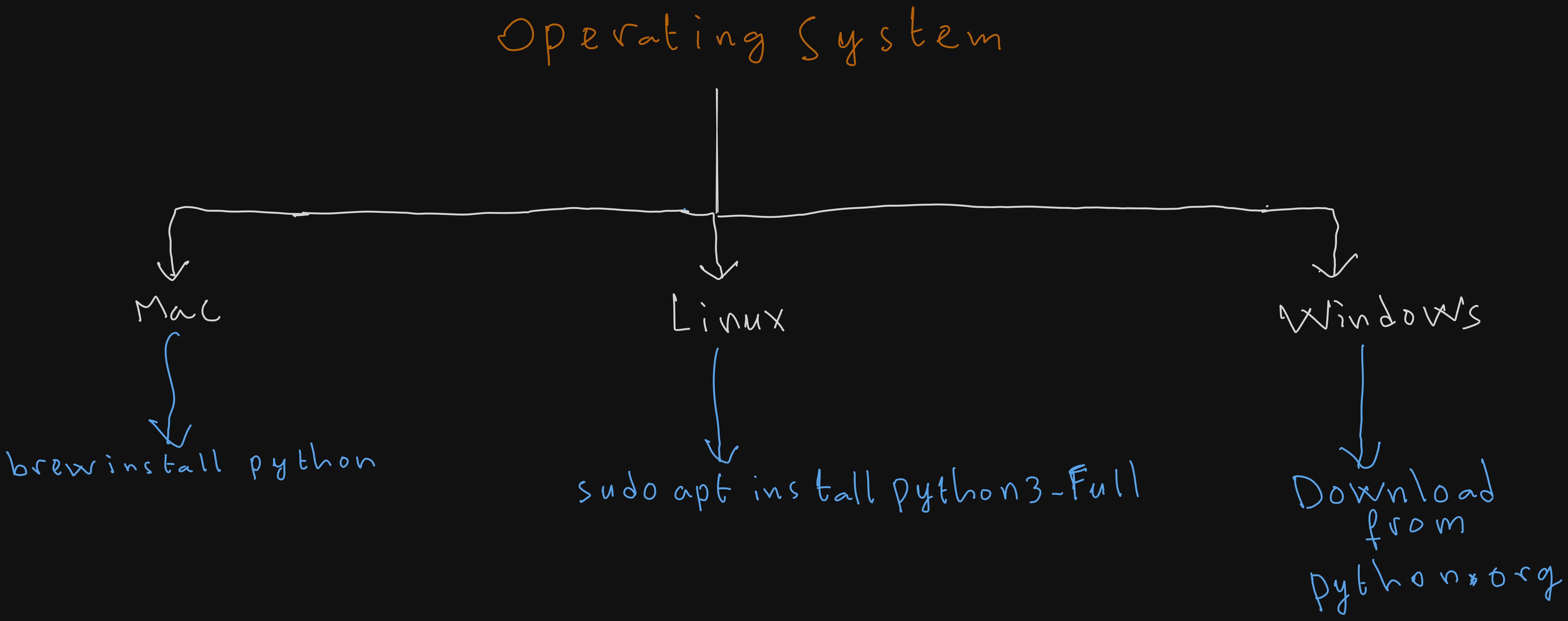
Depending on your operating system the steps may differ. But in MacOs and linux it’s just a matter of running a single command.
MacOS and Linux
brew install python # MacOs

sudo apt install python3-full # Linux
Windows
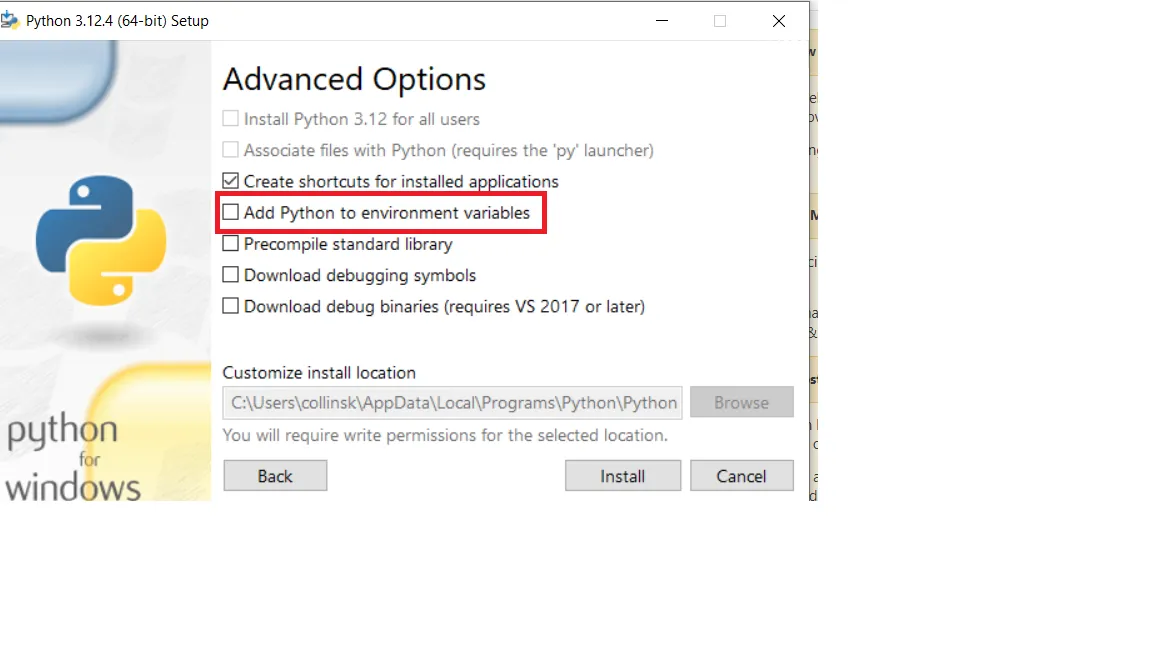 On windows, just head to the python.org website, dowonload the corresponding binary, and make sure to check the “Add to PATH” option.
To confirm that it’s indeed installed, restart your terminal app, and then run:
python3 --version # or python --versionIf a version number appears, then Python is succesfully installed on your system.
First Program: Hello World!
Let’s create our first Python program.
First, we need to create a “hello.py” file, open it with your preferred IDE, and then write a simple “print” statement that just prints “Hello, World!” to the console (the default standard output or “stdout”).
print("Hello, World!")Now, let’s run out the previously created program by typing:
python3 hello.py # Or python
And then press on enter.
As expected a hello world gets printed on your console.
Output:
Hello, World!You can also use Python’s interactive mode where any code you type executes line by line, by running the previous python3 command without any arguments.
python3 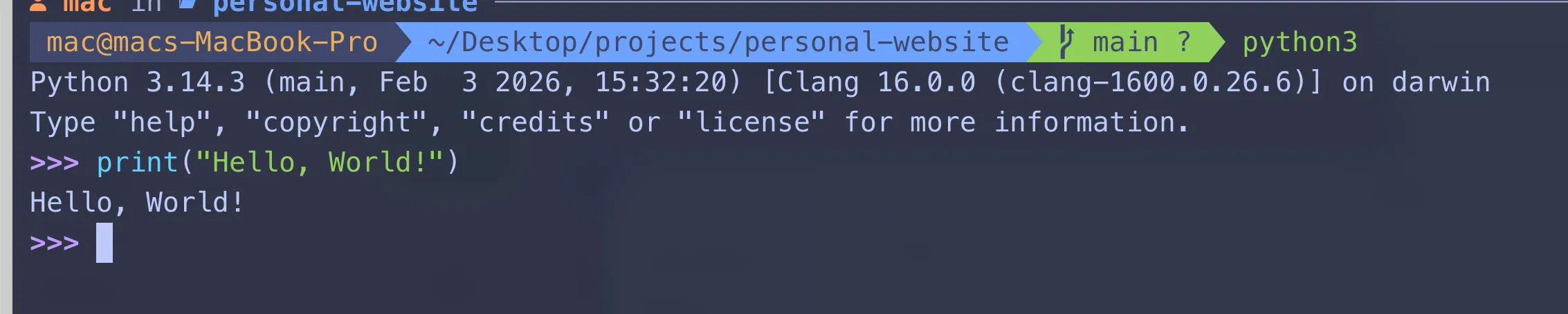
Summary
Installation
# macOS
brew install python

# Ubuntu/Debian
sudo apt install python3-full

# Verify the installation
python3 --version
Your first program
print("Hello, World!")python3 hello.pyInteractive mode
python3Key Notes for Interviews
- Python programs are plain
.pyfiles executed withpython3 filename.py. print()writes text to the console (defaultstdout).- Running
python3without a filename starts the interactive Python shell (REPL), where code executes immediately, which is pretty handy when you want to quickly test stuff.
Conclusion
At this point, Python is succesfully installed on your system, and you wrote your first hello.py Python program!
But that’s obviously not enough to write useful programs.
In the next lesson, we’ll look at variables and data types, which are crucial to understand as they form the backbone that every Python program is based on.
Continue to Variables and Data Types
In the meanwhile, happy coding!
Cet article vous a plu ?
Je suis ouvert à de nouveaux postes, en télétravail ou à l'international. Si quelque chose vous a parlé ou si vous souhaitez collaborer, j'adorerais en discuter.
